

SharePoint is quite often being used to store organizational-wide information. Whether it’s in the form of sites, pages, news-posts, or a plethora of folders containing files, it is a place for employees to find answers to their questions.
Or is it?
Cause how does one navigate through all these SharePoint shenanigans? Especially if there never has been a thought-out plan behind the build-up of the entire structure. Why isn’t there just an FAQ to go to?
There is! It has been there, it got taken away and now it has been returned to our fingertips and mouse-clicks! One big but though…You do need to have a Copilot license.
Spoiler though: if you don’t, you can still create a quite nice FAQ with foldable sections in cahoots with the trusty text webpart. It ain’t perfect, you don’t have to love it, but to be honest…for now that won’t look too much different from what we’re about to dive into.
Let’s have a little FAQ about…the FAQ-AI webpart.
The thing itself is part of the AI-tab in the webparts selection, nicely categorized as still being in (Preview) as of the moment of writing. Really nifty if it doesn’t meet your expectations, one can just say: nah it’s still in Preview, haha.
By now, you should know the drill, hit the little plus to add a section if you didn’t already had one and then make a nice one-two out of it by hitting the plus within that section to open up the webpart selection. It should be right there, on the top, neatly stored at the quite new AI-section, next to it’s companion the Agent link.

What will happen when we select the little bastard? Let’s find out and click on the FAQ webpart.
Immediately a big window pops up in the center of our screen, nudging us to get started. It ‘s got a companion on the right side, with some selectable options trying to lure us in already, but first, let’s just start with that nice “Get started” button that has been offered to us in the center. It must be there for a reason right? Right…?
Smashing this “Get started” button in the middle rewards us with a field that pops up, allowing you to search in your FIles or Meetings for…something to create a FAQ with I suppose. With Files it suggets a couple of your most recent files, or you can search for them by typing in (part of) the name. At the end, it will let you know if there aren’t anymore files found with the same search criteria you’d entered.
Meetings gives a suggested list of your most recent meetings.
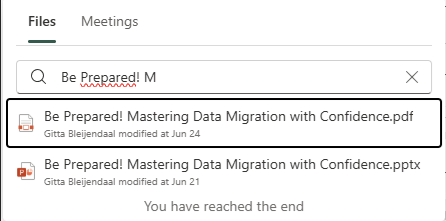
Adding a files via the “Get started” button as we just did, you’ll probably notice it also appears in the toolboxfield on the right. There, it allows you to even add more files. I guess…that “Get started” button doesn’t really add anything, except guide a first-timer by hand? Ah well…that’s nice I suppose. But…
Since it doesn’t really add anything for me, I’ll move over to the toolbox from now on, as that seems to work a lot easier. I’ve added one of my neat little Speaker presentations as a starting point for a FAQ, just to see what will happen. And as I don’t wanna add more to it, let’s kick this up a notch and move to the next step: Purpose.
Yes, just like your SharePoint Intranet needs to have a well-thought-out purpose, you’re FAQ needs one as well. Funny thing, this webparts actually demands that you to stop what you’re doing, sit down, have some tea, think deep thoughts about the purpose of life and distill those thoughts into the purpose of your FAQ.
Or…you can just pick one of the 4 categories as it is a required field to fill in. The info blob that’s offering it’s wisdoms actually tells us that “Purpose” defines the purpose of the FAQ we’re creating, as to help AI generate more accurate content. Who would’ve guessed haha.

Next, there’s a field to enter information that will help AI build this FAQ. Not knowing yet what this little textbox expects from me, or what to expect from it’s outcome…Let’s give it a go!
After giving it approxamently the bare minimum it can dream of (if AI could dream) and nothing more and including a neat little grammar mistake cause why not, let’s just finally hit that nice “Start” button, as we’ve just unlocked it by filling out all the required fields.

As a Copilot user, by now I have gotten used to it’s colourful line-thingy flashing by and it’s little circle spinning, spinning, spinning wildly as it’s creating our nice little FAQ with the bare minimum we’ve decided to feed into it’s generative system.
And after a little while, there it is!
We have some neat little categories (as requested) and questions based on the offered presentation filed into those categories. We’ve got some buttons to add categories or start drafting additional questions. The waferbuttons allow us to move topics and questions around.
So…what’s the last step? Do we need to press exit? Do we need to side-click on the webpart? When is the FAQ finished? This part, to me, feels a tiny bit unintuitive in my humble opinion. But let’s at least try and hit something, or nothing will happen right?
Well…it was a least not hitting the “Republish” button hahaha, all that got me was a blank page.
Luckily after smashing edit again, the draft of your FAQ will still be there, so no worries if you did what I just did. SharePoint has your back on this.
Indeed, it was the iny tiny “Exit” button. THEN the buttons “Keep it” appears, along with its friends the trusty trashcan and back-to-previous-step-arrow.
Huzzah, wonderful, let’s keep what we’ve created.

And here’s the kicker.
If you had expected a neatly categorized FAQ containing both the Q of Question ánd the A of Answers, you’ll be a bit dissapointed, just like me. Cause right now…it’s looking more like a C&A (categories and questions) than a FAQ or Q&A.
Spoiler: AI didn’t generate your answers.
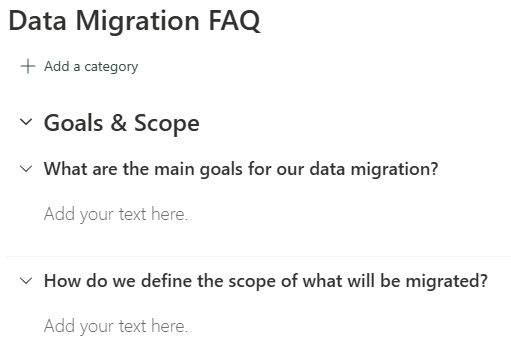
You still have to manually define your Answers. The interface for this looks just like the text webparts. There’s a small option there to, once you’ve typed in something, create the answer with Copilot or to reference concent (paperclip icon).

On the right side of the answers, you have the option to edit the accompanying question, to move the answer up or down, move it to another category (which is nice) or to delete it. Above, next to the question-line, there’s the +Add question button, buttons to edit, move or delete it and the “Import question” button. Interesting…let’s hit that.
The “Import question” button opens a menu on the right that lets you type or paste some text in there, and it will be converted to the same FAQ format as the other questions after assigning it a category. Funny thing is, after I added an import from tekst question, the Category to which I added it, folded, once I reopened it, the question was added with an AI-generated answer, but the menu I used to create the question had disappeard, only allowing me to add further questions via the “Add question” button, which suddenly had a changed look and feel as well.
Go ahead and try, cause why not?
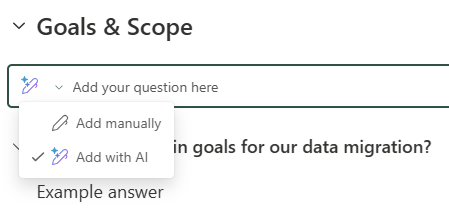
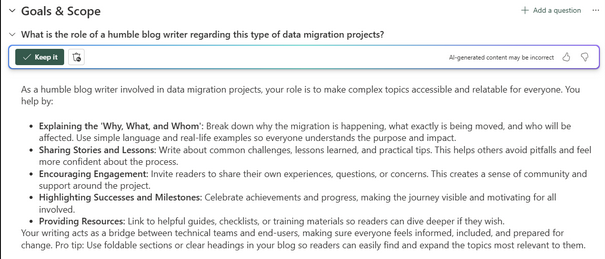
Well at least we’ve an opportunity to also test out the AI-answers. Keep in mind, they may be incorrect though…I can’t complain about this one hahaha.
Last but not least, there are 2 basic lay-out options at the moment, the “Chevron” and the Plus/Minus. They do what you expect them to do: either creating little downward arrows for opened questions or plus/minus options for closed/opened questions pointing users to the fact they can open/close the Q&A.
Keep in mind, that after publishing, only Questions that have an Answer will be visible. I kinda find that neat, cause it allows you to work on you FAQ while users are using it, This in contrast with the non-AI (but still good enough) variant where you make foldable sections with text webparts.
It works just the same actually, but the creating of your Categories and Questions can go a bit faster and you have a tiny advantage with the lay-out, even though it’s still almost as basic as the manual foldable section option.
I might even say that I kinda like the fact I can seperate the foldable section with background coloring, which I can’t do with this FAQ webpart.
FAQ in SharePoint is still in preview though and I have only tested it for now with one PowerPoint presentation and the bare minimum of a prompt to work with. It might work better with a Word file, or maybe some developments are still up-and-coming.
For now, it is a nice to have, but not something that you’ll get a licence for. Although if you have one, why not use it 😀
Keep in mind though, that if you have an admin assisting in the creation of a site or page which requires an FAQ-part, that it is quite unusual to have an admin with a Copilot licents. Work-around is to create a site and temporarily add the admins user-account (if that one does have a Copilot licence) as either an admin or owner to the site.
Or…you know, just stick with the well-thought-out plan you have for your SharePoint Intranet, including designated roles and tasks, cause that works best for long term engagement and less stress on your IT-department.
So far so good, I’ll end this blog with the Q: What do you make of this webpart? And the A: For now: I am gonna be honest and say I don’t think it has that great deal of an advantage on the foldable section part. Cause with both, the one uploading the Q’s and A’s needs to have them both ready. So whether it’s gonna be typed out the old-fashioned way in sectons and text-parts, or first uploaded in a Word-document to be used in the FAQ-webpart, it still needs manual work to link the Q’s to the A’s.
It is kinda nice though, and I am looking forward (read: hoping) to see some more sleek-looking design option to make the FAQ more attractive to read and navigate.
Feel free to reach out to me via LinkedIn to share your thoughts on this FAQ or show off some wonderfully build SharePoint Intranets.
Always curious to learn more and see some awesome build stuff!






Leave a Reply